Klipper printers
NOPAL controls printers running Klipper and Moonraker from the dashboard. You do not need to register them: NOPAL looks for Moonraker on the same machine it runs on, on ports 7125 to 7127, and detects them on its own. If you use other ports, see Connect your first machine.
The card and the detail view
On the dashboard each printer has a card with its name, status, thumbnail and temperatures. Click the card to open its detail view, with these modules:
| Module | What it does |
|---|---|
| Toolhead | X/Y/Z position, home per axis or ALL, Z-Offset and speed factor |
| Temperatures | Current and target temperature of each heater. PRESET applies a preset temperature and COOL DOWN lowers it |
| Queue | The waiting files, with their total, time and filament, and the Start queue button |
| Config files | The printer's configuration files (printer.cfg and others) |
| Camera | The linked camera, if you have the Cameras plugin |
| Spool | The assigned spool: filament, diameter, remaining and color. With no spool you will see "No spool assigned" and the Open Materials button, from where it is assigned |
The gear icon opens Customize Modules: reorder and show or hide the modules. The layout is saved separately for four screen sizes (phone, tablet, desktop and wide screen) and can be reset.
While a print is running, the detail view shows its progress. You can pause, resume and cancel the job.
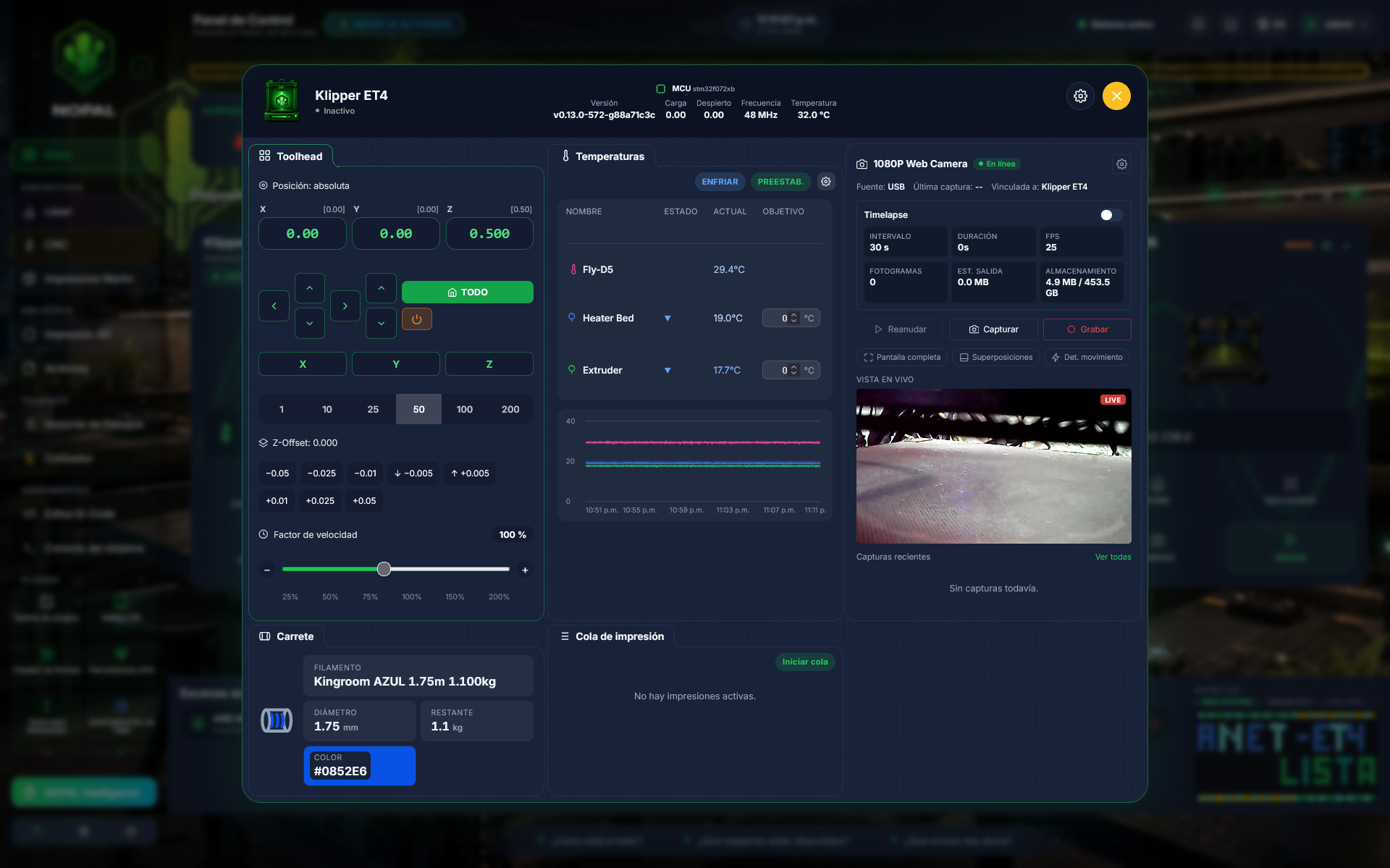
Screenshot of a running system · NOPAL 1.2.0-alpha.1 · Spanish interface · NOPAL Style theme.
Send a file to print
From the library, choose a file and click Send to printer. With a Klipper there are three modes:
| Mode | What happens |
|---|---|
| Print immediately | The file is sent and starts printing now |
| Add to queue | It is added to the printer's queue |
| Schedule print | You choose a date and time and NOPAL starts the print then |
If the printer is offline, NOPAL does not let you send it the file. If it is printing or has a print paused, you can only add it to the queue, not print immediately. The date of a scheduled print must be in the future.
The queue and date/time scheduling only exist for Klipper. The other brands do not have them (Marlin adds sending to the SD card).
NOPAL checks every 30 seconds whether any scheduled print has reached its time.
Configuration and restarts
- Config files: you can read them. Saving them (overwriting
printer.cfg, for example) asks for confirmation, may require restarting Klipper and is for administrators only. - Restart (Klipper) and Restart Firmware (the MCU): they ask for confirmation and are for administrators only.
- NOPAL also offers the Klipper log and the Moonraker log.
- Macros and the console: see Console and macros.
Who can do what
| Action | Operator | Administrator |
|---|---|---|
| View status, send files, use the queue and scheduling | ✅ | ✅ |
| Pause, resume and cancel | ✅ | ✅ |
| Move the toolhead, home and set temperatures | ✅ | ✅ |
| Run macros and send commands through the console | ❌ | ✅ |
| Save config files, restart Klipper or its firmware | ❌ | ✅ |
| Edit the PRESET values | ❌ | ✅ |
If something fails
- My printer does not appear: NOPAL only looks on its own machine and on ports 7125 to 7127. See Troubleshooting.
- "Permiso insuficiente" (insufficient permission): that action is for administrators only.