Plugin gallery
Plugins extend NOPAL with new features. Once installed they appear in the side menu, under Plugins. The Gallery is the screen where they are installed, updated and removed.
The Gallery does not appear for the operator role, and installing, updating and uninstalling require the administrator role. An operator does see the already-installed plugins in the menu.
Install a plugin
- Go to Plugins → Gallery.
- Click install on the plugin you want. NOPAL downloads it (clones its repository) into
plugins/<id>/. - The visual part (frontend) loads immediately.
- If the plugin has a server part (backend), restart NOPAL to activate it: plugins are loaded at startup. The on-screen notice does not say so. See System control.
If the plugin needs a Python version your machine does not meet, NOPAL rejects it with an error.
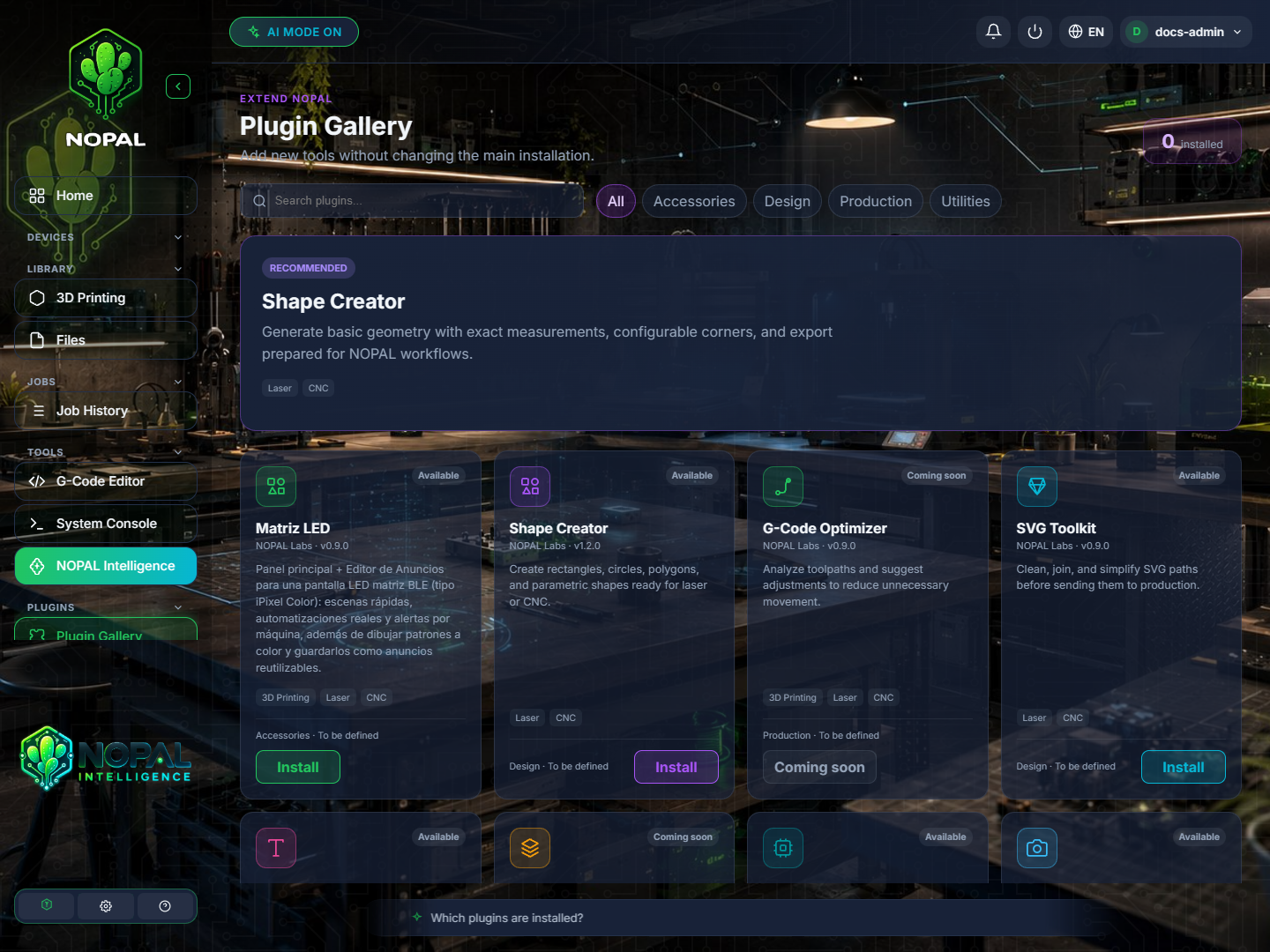
NOPAL 1.2.0-alpha.1 screenshot · English interface · NOPAL Style theme.
Update
Click update on the plugin. If only the frontend changed, the screen reloads. If the backend changed too, NOPAL shows a warning: restart to apply the changes.
Uninstall
NOPAL asks for confirmation and removes the plugins/<id>/ folder and its entry in the installed registry.
Although the confirmation message talks about removing "its registry and local configuration", the code only deletes the plugin folder and its entry in installed.json. State files the plugin saved in the NOPAL folder are not deleted.
Paid and "coming soon" plugins
- Paid plugins are rejected on install (the API answers 501): they are not available.
- Some entries, such as
gcode-optimizerandmaterial-library, are marked Coming soon and cannot be installed.
More information
- What each plugin does: Plugins.
- How it works inside: Installation and gallery.