Laser and CNC
NOPAL controls lasers and CNC machines with GRBL (including ESP3D and FluidNC boards), over the network (WiFi) or USB. You can have several machines at once: each is independent, with its own connection, queue and state. They have two sections under Devices: Laser and CNC.
Registering a machine is an administrator task. See Connect your first machine.
Since October 2026 NOPAL no longer keeps an "active laser" shared by all sessions: each action says which machine it goes to. The panel remembers the machine you chose in each section in your browser. See Migration.
Laser
Connection
The Connection card shows which machine you are connected to and how: USB connection or Network connection (WiFi). If there is no connection you will see "Laser not connected".
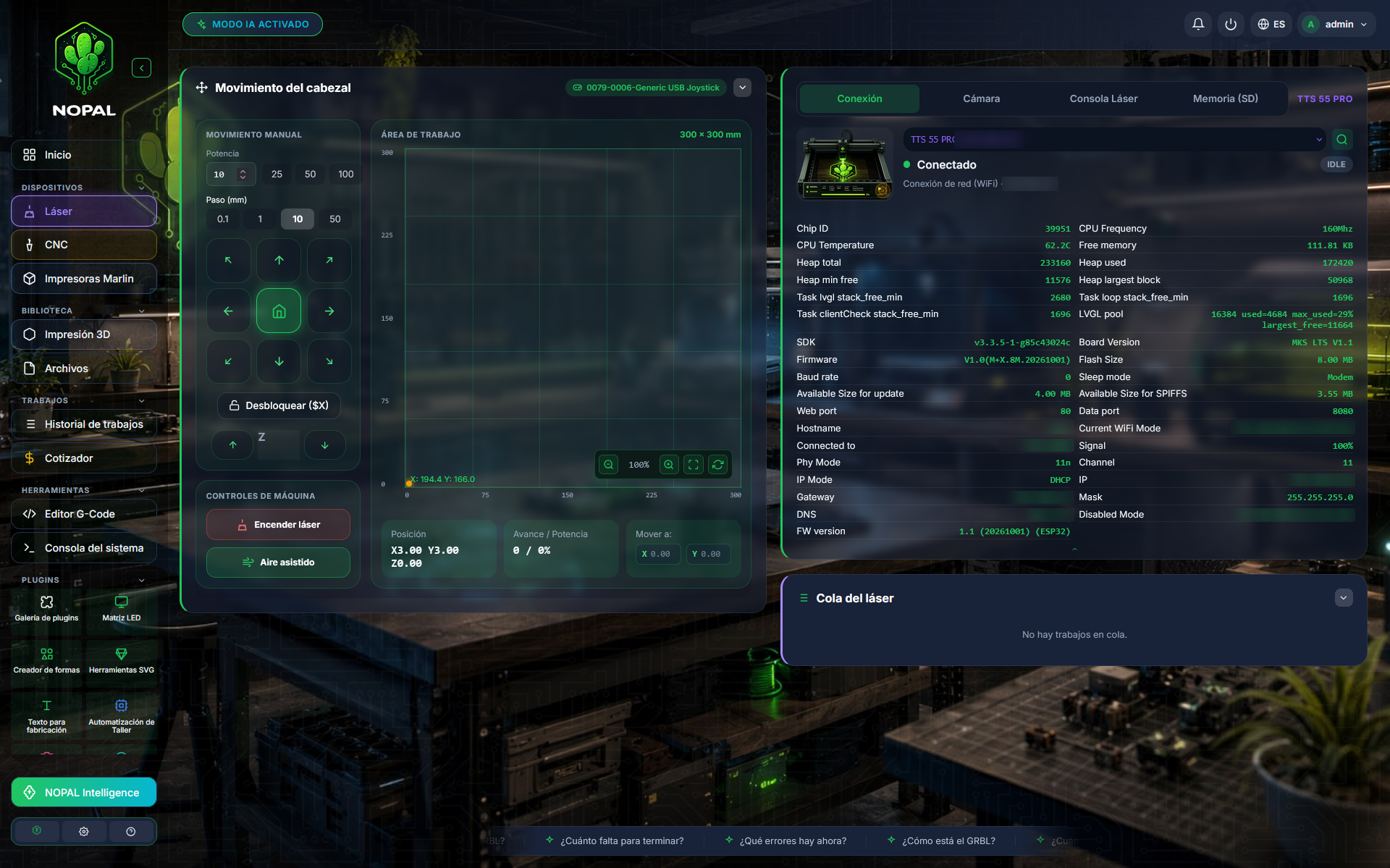
Screenshot of a running system · NOPAL 1.2.0-alpha.1 · Spanish interface · NOPAL Style theme.
Move the head
Under Head movement you move the head with arrows and choose the step in millimeters.
- Home ($H): takes the head to the limit switches (home). For safety, NOPAL can ask for confirmation before doing it; it is enabled in Settings → General with Confirm before Home.
- Unlock ($X): releases the machine from an alarm state.
- Air assist: turn it on or off.
Jobs
- Frame job: traces the job's outline without cutting, to check where it will land. If there is no local copy of the file, it cannot be framed.
- While a job runs, NOPAL shows the elapsed time, the remaining time and the lines processed, as well as progress and power.
- When it finishes or fails, NOPAL notifies you ("Laser job complete" or "Laser job error").
- You can pause, resume and cancel the job.
Laser queue
In the library click Send to laser to add a file to the Laser queue. From the queue you can Send now a job or Remove it. The Laser entry in the menu shows a badge with the number of jobs in the queue.
SD card
If the board has an SD card, the SD Card card lets you:
- Send from library: choose one or more files from the library and upload them to the SD card without taking the card out.
- Import files from your computer, Sync the list and create a New folder.
- Search, sort (name, size) and filter by file type; see the space used.
- Print (run) a file from the SD card.
- Delete files or folders.
- Format SD: erases everything on the card and cannot be undone. NOPAL asks you to type
FORMATin capitals to confirm (the word depends on the interface language; in Spanish it isFORMATEAR). It is for administrators only, and NOPAL warns that this command is not confirmed against all firmwares.
NOPAL tracks the progress of a file running from the SD card even if you started it outside NOPAL.
Console and GRBL parameters
- Laser Console: shows the board's response live. Sending GRBL commands is for administrators only.
- GRBL Settings: opens the board's
$$parameters, with their description, and saves a value when you press Enter. It is for administrators only. Write down the original values before changing any: a wrong change can affect cutting accuracy or damage the motor.
CNC
The CNC section uses the same connection and the same routes as the laser, with a panel designed for milling and plotting:
| Block | What it offers |
|---|---|
| Status | Work and machine position, feed, spindle RPM, unlock and Reset |
| Job | Run, Stop, Park, Probe, feed overrides and Origin Shift |
| Zeros | Zero here (XY) and Z=0 here. NOPAL asks you to confirm the tip is touching the workpiece |
| Jog | Move X/Y/Z with different steps and feed rates |
| Viewer | Three tabs: VISOR (toolpath preview with the work area; anything outside is marked red), SIMULATION (plays the path with speed, pause and restart, and shows lines, drawn distance, travel and time) and 3D VIEW (marked Coming soon) |
| Files | Upload or choose the G-code (.nc, etc.) you are going to machine |
- CNC panel mode (in Settings → General): Simple shows only the essentials; Advanced adds overrides, work coordinates, pins and profiles.
- Profile: Router / Mill or Plotter (pen/marker).
- Spindle: turn on, turn off and set the RPM.
Run from the board's SD card
If the board has an SD card, the Job block offers the Run from the board's SD card (recommended) switch. The job is uploaded to the SD and runs inside the board, so it does not stop if WiFi drops. In exchange, it does not allow live Z adjustment. Without a card, the job is sent line by line over WiFi and may fail if the connection drops.
Job notices
When a CNC job ends, NOPAL tells you. If it stops with an error, it shows the file, the line where it stopped and the reason translated from the GRBL code (for example, "the move goes outside the allowed work area" or "the machine is in alarm or locked"). While it runs, the card shows "Line N of M".
Image to drawing (plotter)
The Image to drawing button, in the Files block, converts an image (PNG, JPG, BMP or GIF, up to 15 MB) into stroke G-code for the plotter:
- It works best with line art (mandalas, outlines, black-and-white logos). If the image looks like a photograph, NOPAL warns you.
- You choose the width and height in mm. NOPAL compares with the work area and, if the drawing does not fit, requires you to tick that you understand before generating it.
- You set the pen (Z up, Z down) and the drawing, plunge and travel speeds, and you can fine-tune smoothness, small-detail cleanup and precision.
- You see the preview (Trace, Overlay or Original) with the statistics: strokes, distance, travel and estimated time.
- Generate drawing saves it to the Library.
While a plotter job runs over WiFi, you can raise or lower the pen (−1 to +1 mm per adjustment; negative = more pressure) for the strokes that remain. With a job from the SD card you cannot.
Two wizards guide you:
- Setup wizard: where the zero point goes (the X/Y corner and the Z origin), the maximum Z height and the type of job (carving, engraving, cutting, painting or drawing).
- Guided drawing (for a plotter): choose a design, position the origin, confirm it fits in the work area and start.
Boards with Marlin firmware
A laser or CNC can also be registered with Marlin firmware instead of GRBL. The view works the same, but the $$ parameters are for GRBL only.
If the USB port or IP changes
Each laser or CNC has a fixed internal identifier. If the USB port or IP changes, NOPAL finds it again by its USB location or its MAC address, without losing its configuration, camera or history.
Who can do what
| Action | Operator | Administrator |
|---|---|---|
| View status, move the head, home, unlock | ✅ | ✅ |
| Set work zeros and adjust overrides | ✅ | ✅ |
| Start, pause, resume and cancel a job; frame | ✅ | ✅ |
| Use the queue and the SD card (upload, run, delete) | ✅ | ✅ |
| Turn on the laser or spindle and set its power or RPM | ❌ | ✅ |
| Send commands through the console | ❌ | ✅ |
GRBL parameters ($$) | ❌ | ✅ |
| Format the SD card | ❌ | ✅ |
| Scan the network, test USB ports, register and remove | ❌ | ✅ |
The permission policy intends deleting SD card files to be for administrators only, but today any signed-in user can do it. It is one of the routes still to be migrated. See Users and roles.
If something fails
- No laser controllers detected over USB, or "No GRBL response detected on this port": check the cable, that the board has GRBL or FluidNC and the port permissions. See Troubleshooting.
- My laser is on another subnet: the scan does not see it. Use Search by IP.
- A machine alarm (limit switches, open door) appears as an alert on the dashboard.