First access
In this tutorial you open NOPAL for the first time, create your administrator account and sign in. NOPAL must already be installed and running.
1. Open NOPAL in the browser
From any machine on your local network, open:
http://<machine-ip>:8420
Replace <machine-ip> with the address of the machine where you installed NOPAL. The installer prints it when it finishes. If you changed the port when installing, use yours.
2. Create the administrator account
If this is the first time, you will see Initial setup with the message "This is the first time NOPAL is opened — create the administrator account."
- Enter a username.
- Enter a password of at least 8 characters.
- Repeat it in Confirm password.
- Click Create account.
If the passwords do not match you will see "Passwords do not match".
Check: you go straight to the Dashboard, without passing through sign-in.
This screen only appears while no user exists. Whoever completes it first becomes the installation's administrator.
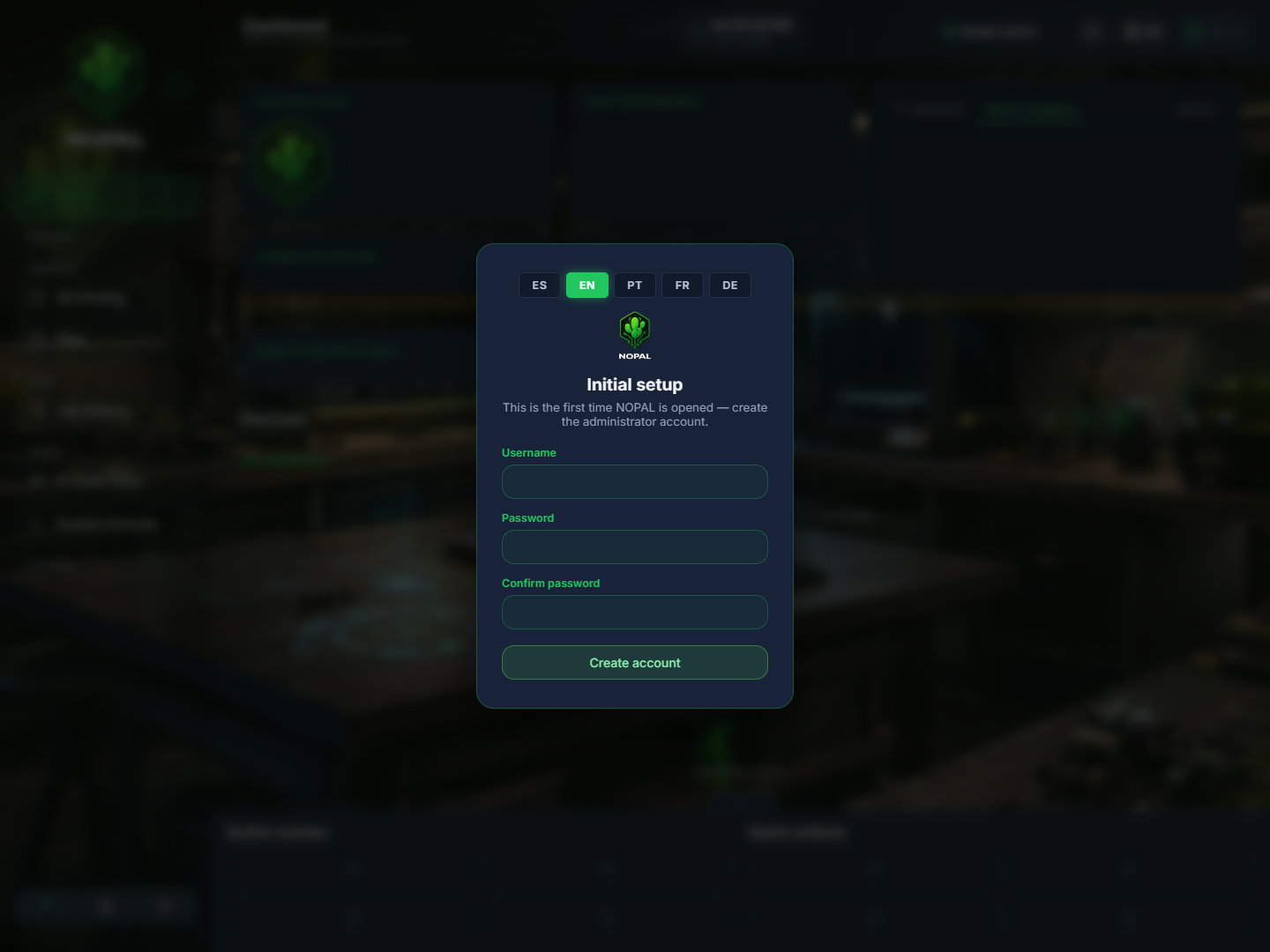
NOPAL 1.2.0-alpha.1 screenshot · English interface · NOPAL Style theme.
3. Sign in on other occasions
From now on you will see Sign in: enter your username and password and click Sign in.
- With wrong credentials you will see "Incorrect username or password".
- After 5 failed attempts in 5 minutes NOPAL answers "Demasiados intentos; vuelve a intentarlo en unos minutos" (too many attempts; try again in a few minutes).
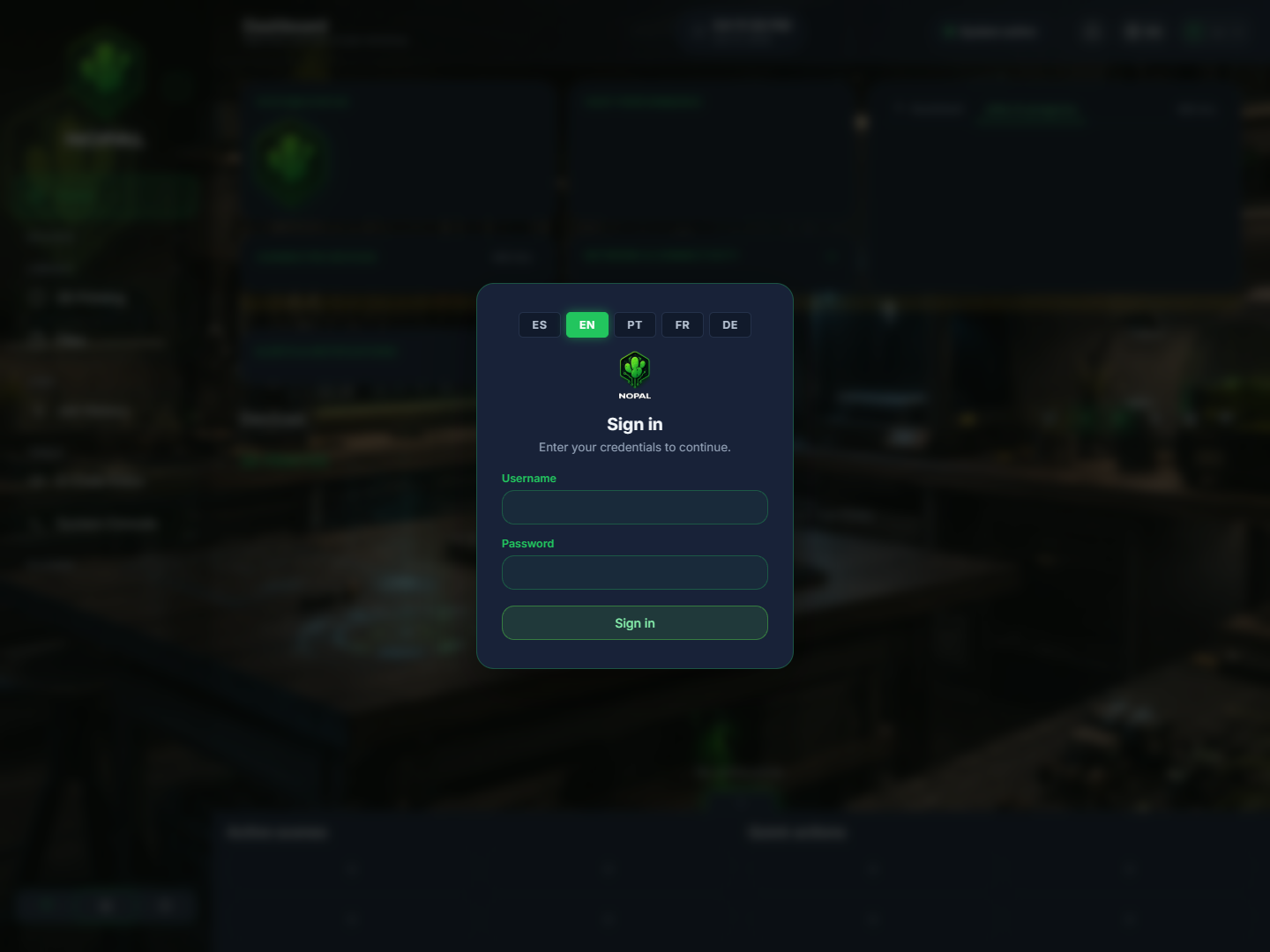
NOPAL 1.2.0-alpha.1 screenshot · English interface · NOPAL Style theme.
4. Choose the language
NOPAL is available in Spanish, English, Portuguese (Brazil), French and German. The language selector is on the sign-in screen and, once inside, in the top bar and in Settings → General.
Supported screens
NOPAL is designed for desktop and tablet. On phone screens, below 640 px of width, the dashboard does not open: you see the notice "NOPAL works best on desktop or tablet", which suggests another option for using it from the phone. On a tablet, the side menu hides in a drawer that opens with the menu button.
What next
- Connect your first machine
- If you need more accounts, an administrator creates them in Settings → Users. See Users and roles.