Dashboard
This is NOPAL's main screen (Home in the menu, Dashboard as its title). It summarizes your workshop's status in real time and takes you to each machine.
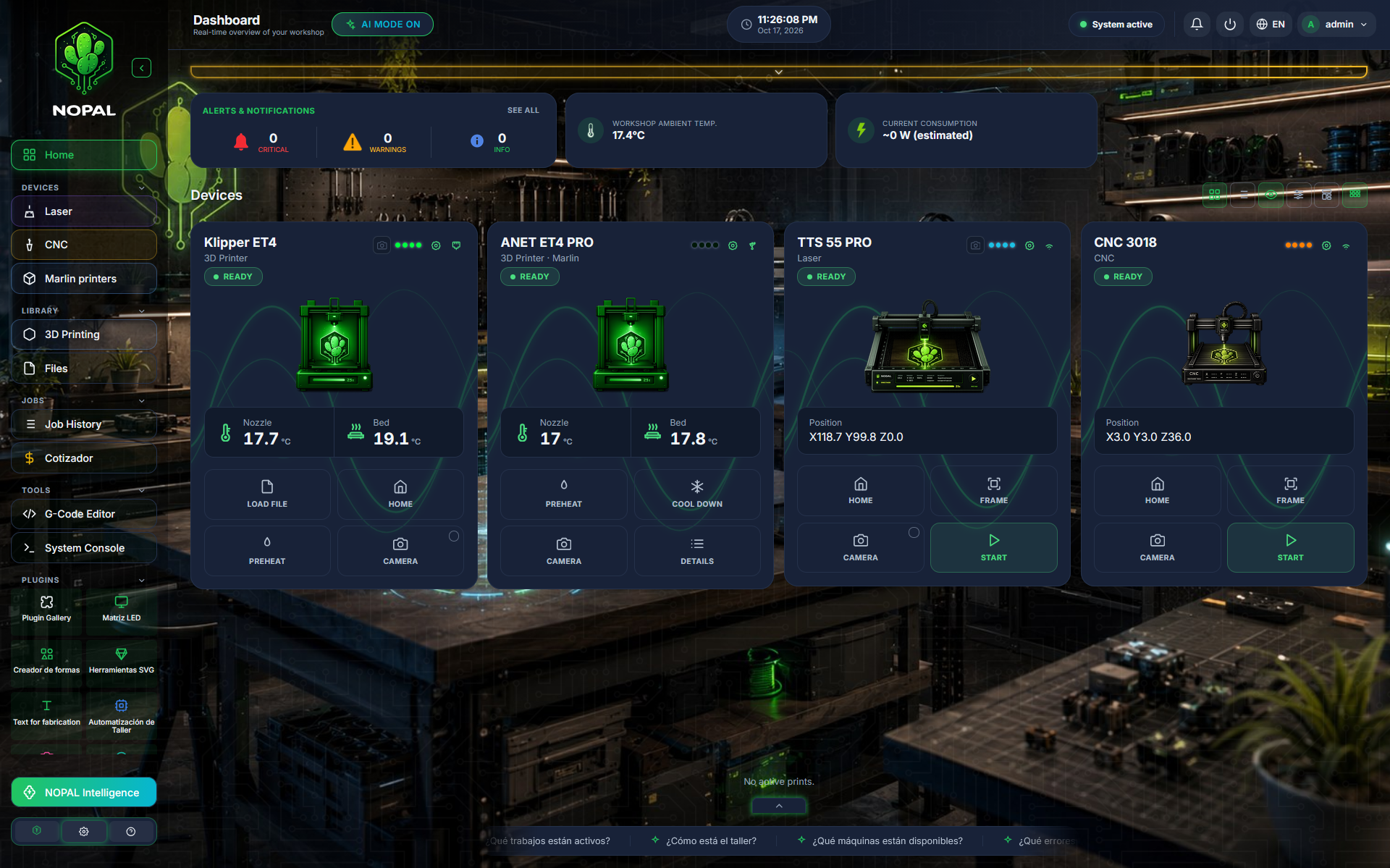
Screenshot of a running system · NOPAL 1.2.0-alpha.1 · English interface · NOPAL Style theme.
The side menu
| Group | What it contains |
|---|---|
| Home | The dashboard |
| Devices | Laser, CNC, Marlin printers, Elegoo printers, FlashForge printers and Bambu Lab printers |
| Library | 3D Printing (models) and Files (G-code). See Library |
| Jobs | Job History. See History |
| Tools | G-Code Editor, System Console and NOPAL Intelligence (the latter only when an administrator turns the AI on) |
| Plugins | The Plugin Gallery (administrators only) and the installed plugins |
| Gear | Settings |
Klipper printers have no section of their own in the menu: they are controlled from the dashboard. The other families have their section under Devices.
The Laser and CNC entries show a badge with the number of jobs in their queue.
The top bar
- Notifications (bell): see below.
- System control: administrators only. See System control.
- Language: Spanish, English, Portuguese (Brazil), French or German.
- User menu: your name and role (Admin or Operator), and sign out.
Real-time overview
The top part shows "Real-time overview of your workshop" and the overall status: System active, Check warnings or Attention needed. Below are summary cards:
| Card | What it shows |
|---|---|
| System status | Health, active services, uptime and whether updates are available |
| Host performance | Disk and load average of the machine NOPAL runs on |
| Network & connectivity | The server's network data: local IP, speed and traffic |
| Connected devices | How many machines are connected |
| Jobs in progress | Active jobs with remaining time and layer |
| Alerts & notifications | Count of critical alerts, warnings and info |
| Workshop ambient temp. | The ambient temperature, if you have a sensor (Workshop Automation plugin); otherwise "No sensor" |
| Current consumption | An estimated value |
| Next maintenance | A suggestion based on the current alerts and jobs; "No data" if there is none |
| Quick actions and Active scenes | Filled in by the Workshop Automation plugin; without it they appear as empty slots |
You can collapse the top panel (Collapse top panel) and choose in Settings → Appearance & UI/UX whether it stays always visible or hides until you move the mouse over the top bar.
"Host performance" starts empty ("Gathering data…") and fills with real samples while NOPAL is running.
Your machines
Below the overview, the Devices section shows one card per machine, grouped by type (3D printers, laser and CNC). Click a card to open its controls.
The color dot on each card shows its status:
| Status | Means |
|---|---|
| Idle | Connected, no job |
| Printing | Has a job in progress |
| Paused | The job is paused |
| Offline | NOPAL cannot communicate with it |
A machine can also show Conflict: NOPAL cannot confirm that the device on that port or IP is the same one (for example, another board took its port). Hover over the label to see the cause. NOPAL never reassigns a machine on its own.
Customize the view
The Devices bar has three options:
- Organize devices: choose which machine types you see (3D printers, laser, CNC) and drag them to change their order. At least one type must stay visible.
- Organize printer card: change the order of the four sections of each card (header, status, thumbnail and temperatures). They cannot be hidden.
- Group mode: groups the devices by machine type.
If you turn off Show offline machines (in Settings → General), the dashboard only shows the connected printers and lasers.
Notifications
The bell warns about things that need your attention. Each notice has a severity: critical, warning or info. Among others, NOPAL warns about:
- Disconnected machines and jobs with an error or paused.
- Laser and CNC alarms (limit switches, open door): the machine responds, but needs physical attention.
- Accessories that do not respond and extraction accessories that are off (Workshop Automation plugin).
- Motion detected on a camera (Cameras plugin), within the last five minutes.
- NOPAL updates available.
Critical alerts can open an Attention needed notice. You can dismiss a notice to stop seeing it while it stays the same.
With Sound alerts (in Settings → General), NOPAL plays a sound and shows a notification when a job finishes or fails, or when a device connects or disconnects.
Who can do what
All users see the dashboard and the machines' status. System control, the Plugin Gallery and several Settings cards are only visible to administrators. See Users and roles.