Model and G-code library
The library stores your files on the server, in folders, and is the starting point for printing or cutting. It has two sections in the Library group of the menu:
| Section | What it shows |
|---|---|
| 3D Printing | Models and files ready to print (and also G-code) |
| Files | G-code files only |
Which files it accepts
| Type | Extensions |
|---|---|
| Models | .stl, .3mf, .obj, .step, .stp, .svg, .dxf |
| G-code | .gcode, .gc, .gco, .nc, .tap, .cnc |
They are stored in the uploads/models and uploads/gcode folders of the NOPAL installation.
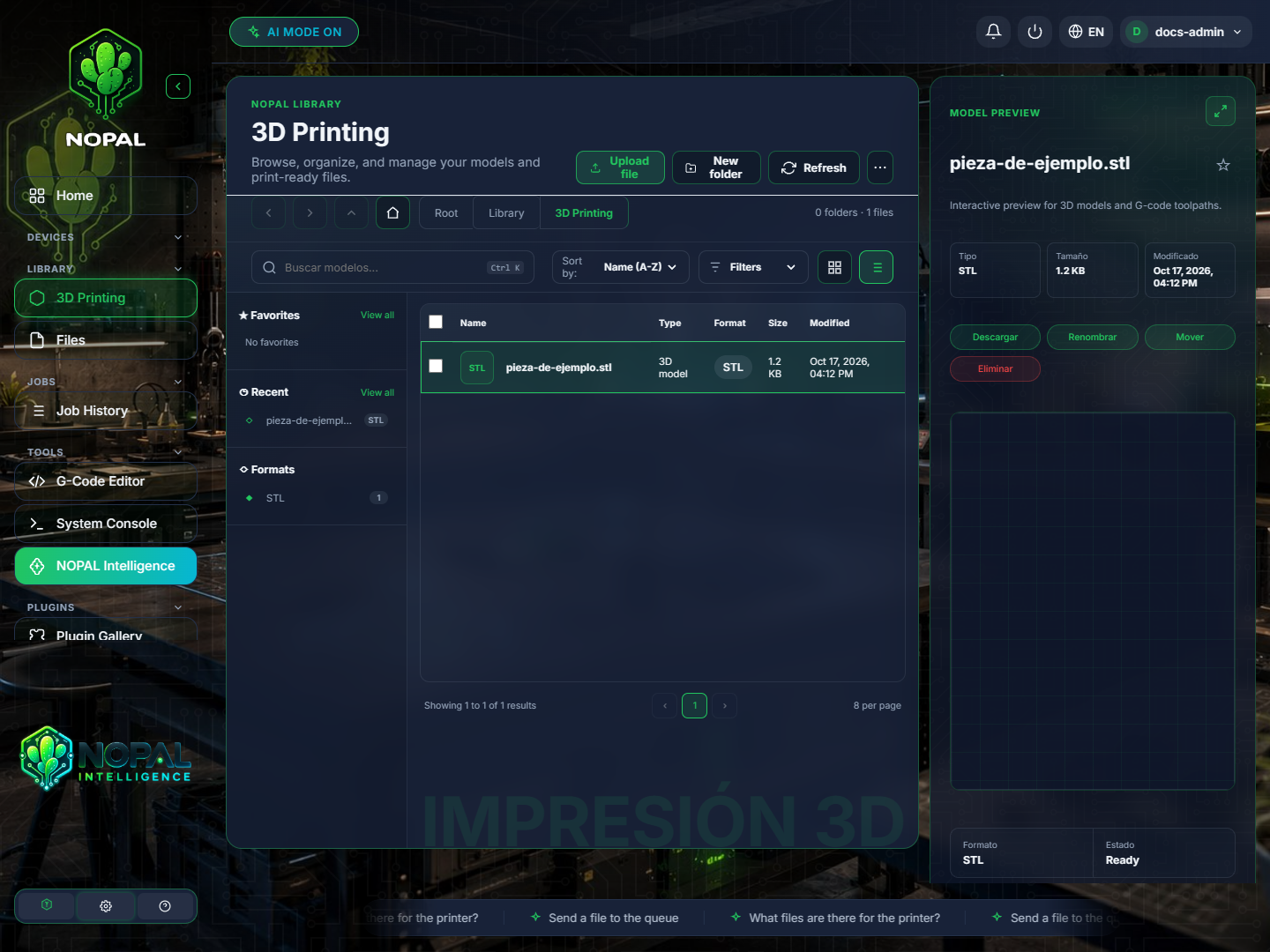
NOPAL 1.2.0-alpha.1 screenshot · English interface · NOPAL Style theme.
Upload files
- Click Upload file, or drag files from your computer into the window.
- The file name must be a simple name: it cannot contain
/or\. Otherwise NOPAL answers "Nombre de archivo inválido" (invalid file name).
Browse and organize
The library works like a file explorer:
- Folders: breadcrumbs and Back, Forward, Up one level and Home buttons. New folder creates one; you can also rename or delete it (with all its contents).
- Sort by name (A-Z or Z-A), newest, oldest or largest size.
- Filters: Favorites, Recent, 3D models, by format and by folder. There is also a search by name.
- Grid view or list view, and pagination ("Showing 1 to 20 of 85 results").
- Multiple selection: pick several files and use Move or Delete from the selection bar.
- A free disk space indicator.
Laser and CNC files show a thumbnail with the design's outline generated from the G-code's own X/Y moves. In files with more than 2 million lines the thumbnail is computed from the first ones only and may be partial.
Preview
When you choose a file, a preview panel opens on the right:
- For STL and 3MF models, an interactive 3D view.
- For G-code, the file's toolpath.
- Data such as size, modification date and number of lines, and a favorite star.
You can adjust the detail in Settings → General → Preview Quality.
Send a file to a machine
From the preview:
| Action | For |
|---|---|
| Send to printer | Any 3D printer. The available modes depend on the brand: see Klipper, Marlin and Bambu Lab, Elegoo and FlashForge |
| Send to laser | Adds the file to the laser queue (or the CNC's). See Laser and CNC |
| Send to SD (on a laser's SD card) | Uploads the file to a GRBL machine's card |
| Download | Saves the file to your computer |
| Rename, Move, Delete | Manage the file |
Who can do what
All signed-in users can upload, move, rename and delete files and folders in the library, and send them to the machines.
Deleting a file or a folder cannot be undone. NOPAL asks for confirmation before doing it.
Backup
The library is not part of NOPAL's configuration backups. Copy it separately. See Backups.